The key points
- Decide how an email maps to a deal before you build anything. Deal ID, sender domain or a deal-specific address are the usual keys.
- Create the Drive folder once per deal and reuse its ID. A Drive file has one parent folder, so the folder you choose is the home of the file.
- The n8n Gmail Trigger polls. It fetches 10 messages per poll by default, up to 50, and the rest wait for the next poll.
- Send unmatched emails to a review list instead of filing them under a guess.
What does the workflow look like end to end?
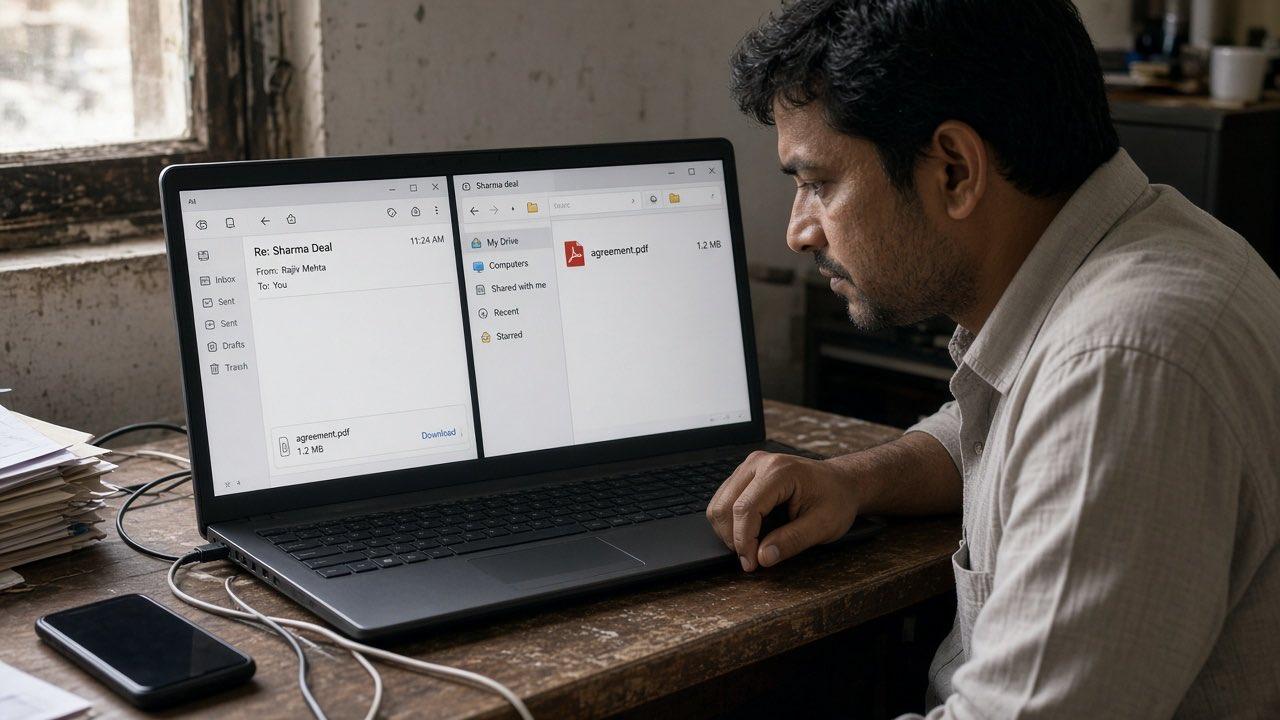
Five steps in one n8n workflow. A trigger picks up a new Gmail message. A matching step turns the sender, subject or label into a deal ID. A Drive step finds that deal's folder, or creates it on the first email. An upload step saves each attachment into the folder. A last step creates or updates a record in Notion or your CRM with the email subject, date, sender and the Drive link.
n8n documents a Gmail Trigger node, a Google Drive node and a Notion node, so each step is a node rather than custom code. Where a node lacks an operation, n8n's Gmail page points to the HTTP Request node using your existing Google credential.
How does an email get matched to a deal?
This is the design decision. Three keys work in practice. A deal ID in the subject line, such as D-1042, is exact. A sender domain stored on the company record maps every email from that company to its open deal. A deal-specific address, such as a plus-address or alias that your team copies on every thread, files everything without anyone typing an ID.
The Gmail Trigger can narrow what enters the workflow. It accepts Gmail search filters such as from:, label filters and a read-status filter, so a label like Deals keeps personal mail out. When a domain has two open deals, or nothing matches, the workflow does not pick one. It adds the message to a review list in Notion and a person assigns it in one click.
The matching table is the part that needs your input. The workflow builds around a list of deals with an ID, a company, the domains involved and the Drive folder ID once it exists. That list can be a Notion database or a table in your custom CRM.
How are the Drive folders created and filled?
Google's Drive folder guide defines a folder as a file with the MIME type application/vnd.google-apps.folder, created with files.create. A file goes into a folder by putting the folder ID in its parents property, and a file can only have one parent folder.
So the workflow stores the folder ID on the deal record the first time it creates the folder. Every later email reads that ID and uploads straight into it, with no search needed. If the ID is missing, the Drive search syntax lets you look the folder up with a query like mimeType = 'application/vnd.google-apps.folder' and name = 'D-1042' and trashed = false. Check for the folder before creating one, or a retry produces two folders for the same deal.
Attachments come from the Gmail API. The attachments.get method returns a message attachment by message ID and attachment ID. In n8n, the same message data feeds the Drive upload step, one file per attachment. Name each file with the date and sender so the folder reads in order.
What goes into Notion or the CRM?
One record per email, linked to the deal. Subject, sender, received date, the Gmail message ID and the Drive folder link are enough to find anything later. The Notion node supports create, get, get many and update on database pages, and Notion's create page reference says property names must match the parent data source's schema, so build the database columns first.
Store the Gmail message ID on every record. The workflow checks for it before writing, so a re-run or a late poll never creates a second row for the same email. This is the same idea as the event-id check in Stripe webhooks and idempotency.
Polling or push: which trigger should you use?
The n8n Gmail Trigger polls at the poll time you choose. Each poll fetches up to the Max Emails per Poll value, which defaults to 10 and tops out at 50, and any extra unread mail waits for the next poll. For a team that gets dozens of deal emails a day, a poll every few minutes keeps up.
Gmail also offers push through Cloud Pub/Sub. Google's push notification guide says you must call watch at least once every 7 days or updates stop, recommends calling it once a day, and notes that delivery can be delayed or dropped, so it suggests a periodic history.list fallback. Push needs a Pub/Sub topic, a subscription and publish rights for gmail-api-push@system.gserviceaccount.com. It is worth the setup when you need filing within seconds. Polling is simpler to run and enough for most deal desks.
How does Softivum build this?
The matching rules are agreed in writing first: which key identifies a deal, what happens to an unmatched email, who reviews the list. The workflow then runs on your Google and Notion accounts, with credentials in your name, and a failed step alerts a named person instead of failing silently. Workflow automation is the service for this. If the deal list outgrows Notion, the same workflow writes to a custom CRM with the Drive folder as a field on the deal. For the tool choice, see Zapier, Make or n8n.
How to match a Gmail message to a deal
| Matching key | How it works | Best for | Watch for |
|---|---|---|---|
| Deal ID in the subject | Workflow reads an ID such as D-1042 from the subject line | Teams that control the thread from the first email | Customers who start a new thread and drop the ID |
| Sender domain | Domain on the company record maps to the open deal | One open deal per company | Two open deals for one company, and free mail domains |
| Deal-specific address | Alias or plus-address copied on every thread | Teams that want filing with no typing | Someone forgetting to copy the address |
| Gmail label | A person applies a label that carries the deal ID | Small volumes and mixed senders | Relies on a manual step every time |
| No match | Message goes to a review list | Every setup | Keep the list short and clear it daily |
Before you switch the filing workflow on
- The matching key is written down and every open deal has it
- Each deal record stores its Drive folder ID
- The workflow checks for an existing folder before creating one
- The Gmail message ID is stored and checked before every write
- Unmatched emails land in a review list with a named owner
- A failed run alerts a person
Sources
Rules and guidance this answer relies on. Policies change, so check the current version before acting on it.